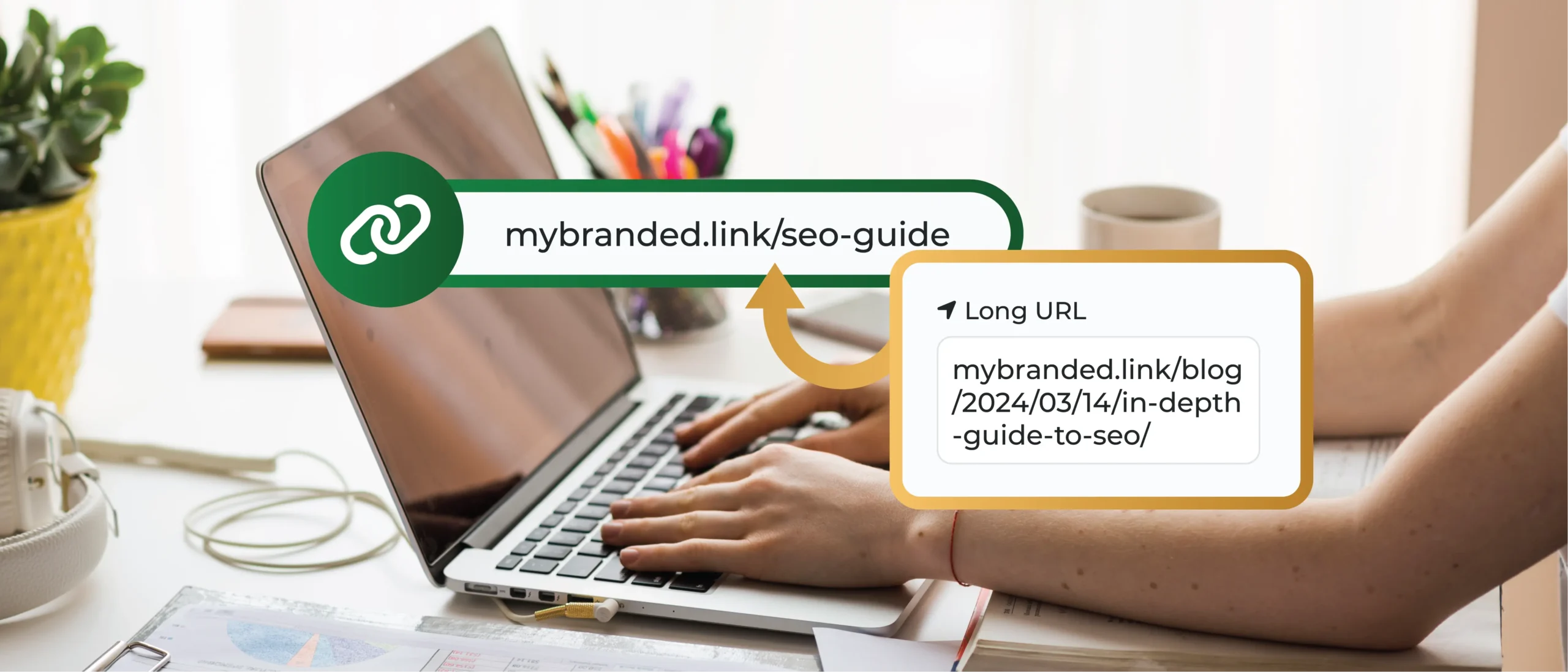
Creating a shortened link takes just a few steps. This guide walks you through the whole process – from pasting your long URL to using your finished link.
Looking to set a custom alias? For more detail on custom aliases, see our guide: Can I create a TinyURL with an alias?
Steps to Create Your Link
Step 1: Copy your long URL
From your browser, copy the long web address you want to shorten. This is your destination URL—the page a person will land on after clicking your TinyURL link.
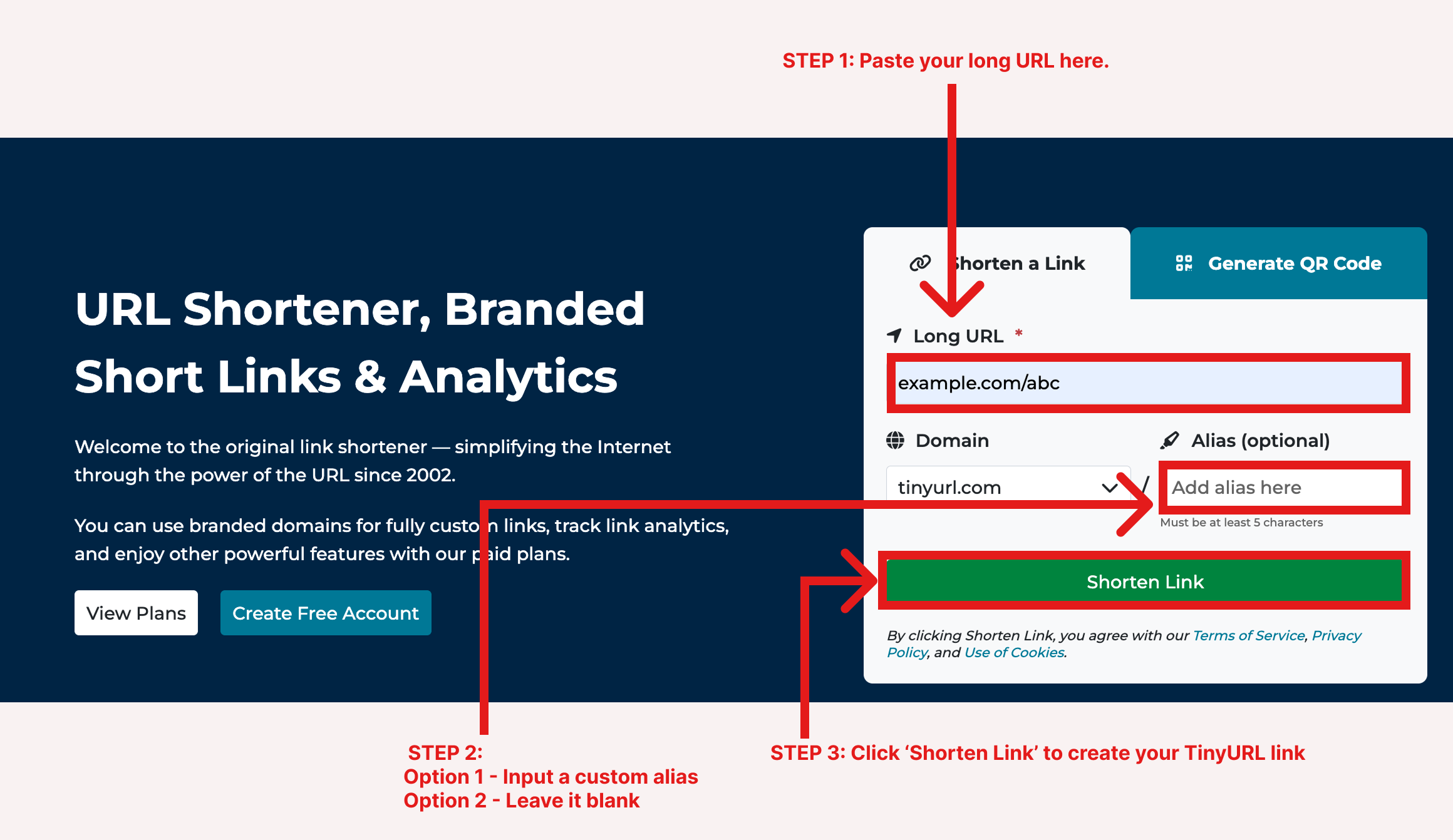
Step 2: Paste it into TinyURL
On our website, paste that long URL into the Paste long URL here field.
Step 3: Choose an alias (optional)
The alias is the custom ending of your short link (for example, the events in tinyurl.com/events). You have two options:
- Option 1: Set a custom alias. Type the ending you’d like. Keep in mind that because tinyurl.com is free and used worldwide, popular aliases (like events) are often already taken by someone else. If a common word is important to you, we recommend our Branded Domains feature—with your own domain, you’re guaranteed that no one else in the world can claim the alias you want.
- Option 2: Leave it blank. If you don’t need a custom ending, leave the alias field empty. When you shorten the link, our system will automatically generate one for you.
Step 4: Shorten the link
Click the Shorten URL button to generate your TinyURL link.
That’s it! Your link is ready to use.
Using Your New Link
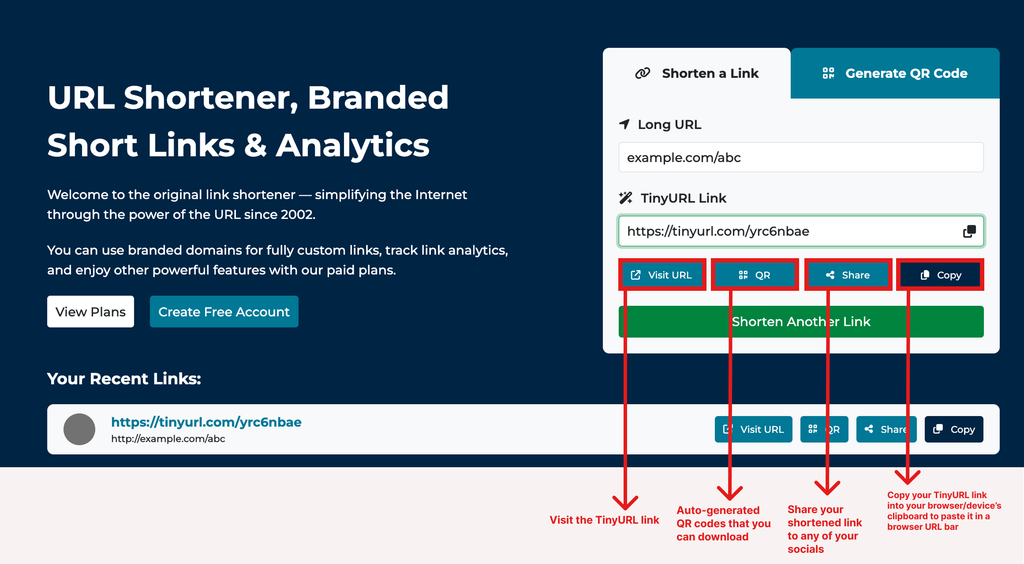
Once created, your link appears in your Your Recent Links list. From there, you can:
- Visit URL: Opens the destination URL so you can confirm the link works.
- QR Code: Generates a QR code you can print on flyers, posters, and other materials.
- Share: Posts or shares your link directly to your social media accounts.
- Copy: Copies the link to your clipboard so you can paste it anywhere—an email, a message, or a browser address bar.
Quick Summary
| Step | Action |
|---|---|
| 1 | Copy the long (destination) URL |
| 2 | Paste it into the Paste long URL here field |
| 3 | Set a custom alias, or leave blank for an auto-generated one |
| 4 | Click Shorten URL |
Tip: For guaranteed access to popular, memorable aliases, use a Branded Domain instead of the shared tinyurl.com domain. Visit our Pricing Page to upgrade your account and start using branded links: https://tinyurl.com/app/pricing