Manage your domain
To complete the DNS setup of your domain connected to TinyURL, please complete the following steps.
- Login and change DNS settings with your GoDaddy Domain Control Center.
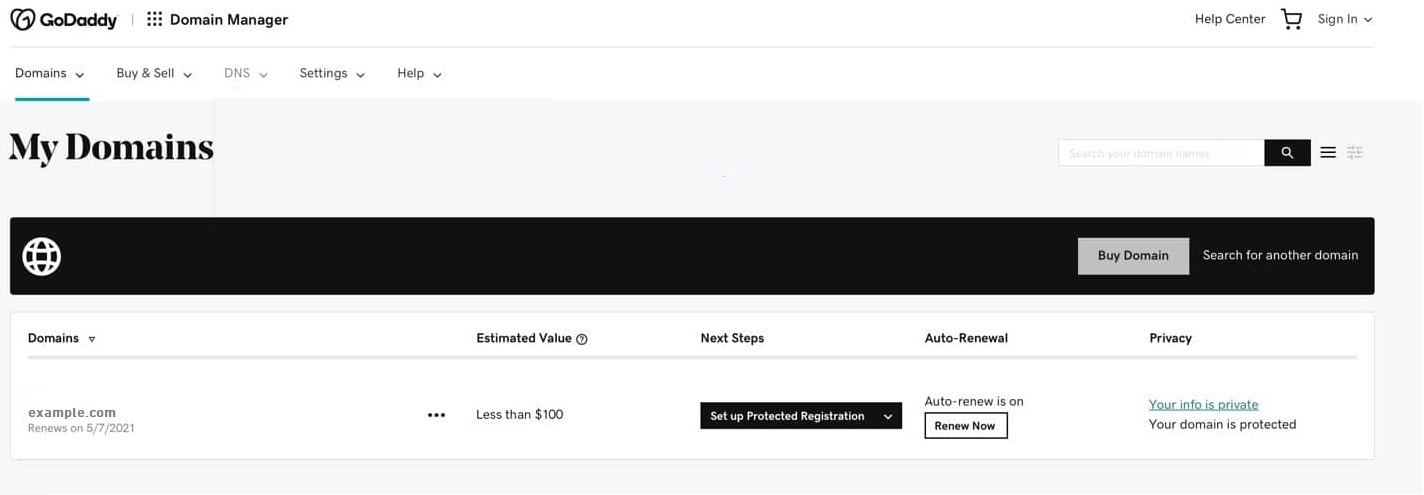
- From your Dashboard or Domains List, select the name of the domain you added into TinyURL.
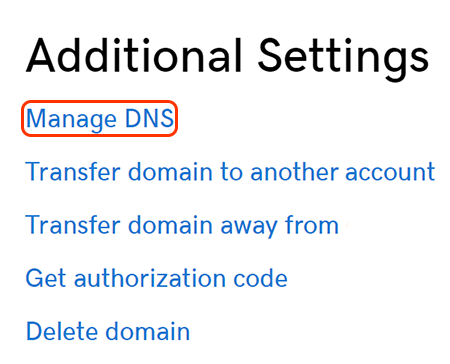
- On the Domain Settings page, scroll down to Additional Settings and select Manage DNS.
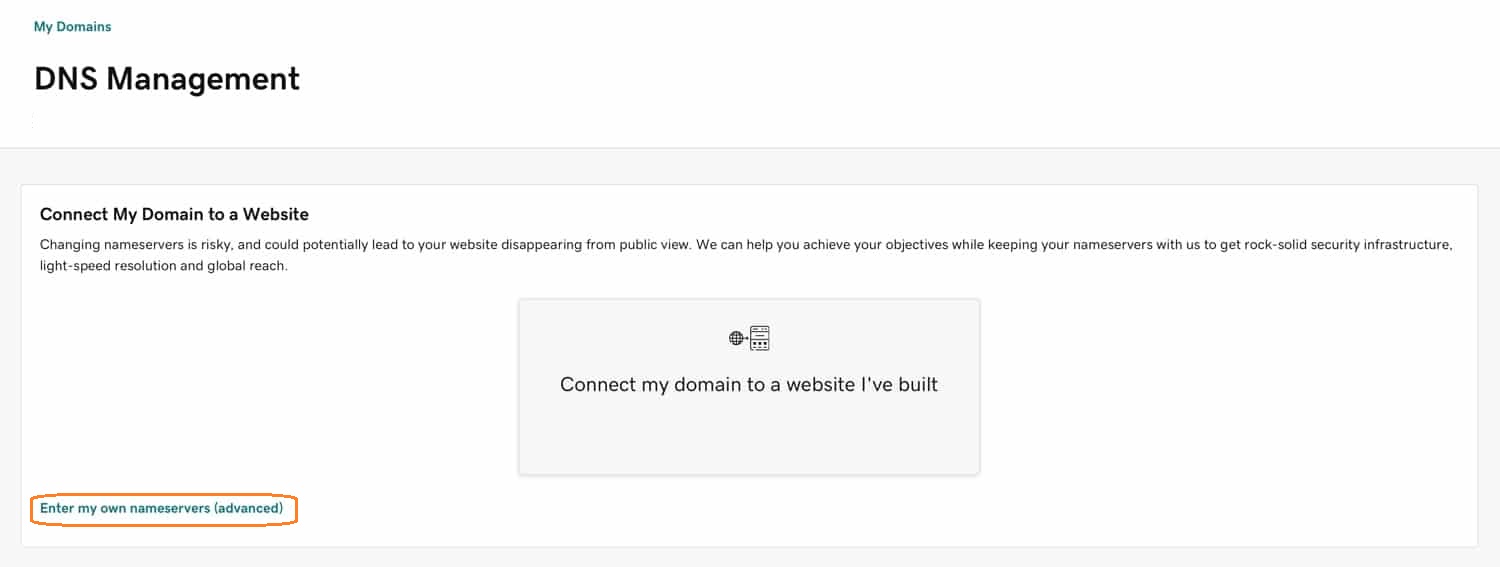
- To allow your domain to point to TinyURL servers, choose Enter my own nameservers (advanced).
- Remove and replace existing nameservers with all of the following:
ns1.tinyurl.com
ns2.tinyurl.com
ns3.tinyurl.com
ns4.tinyurl.com
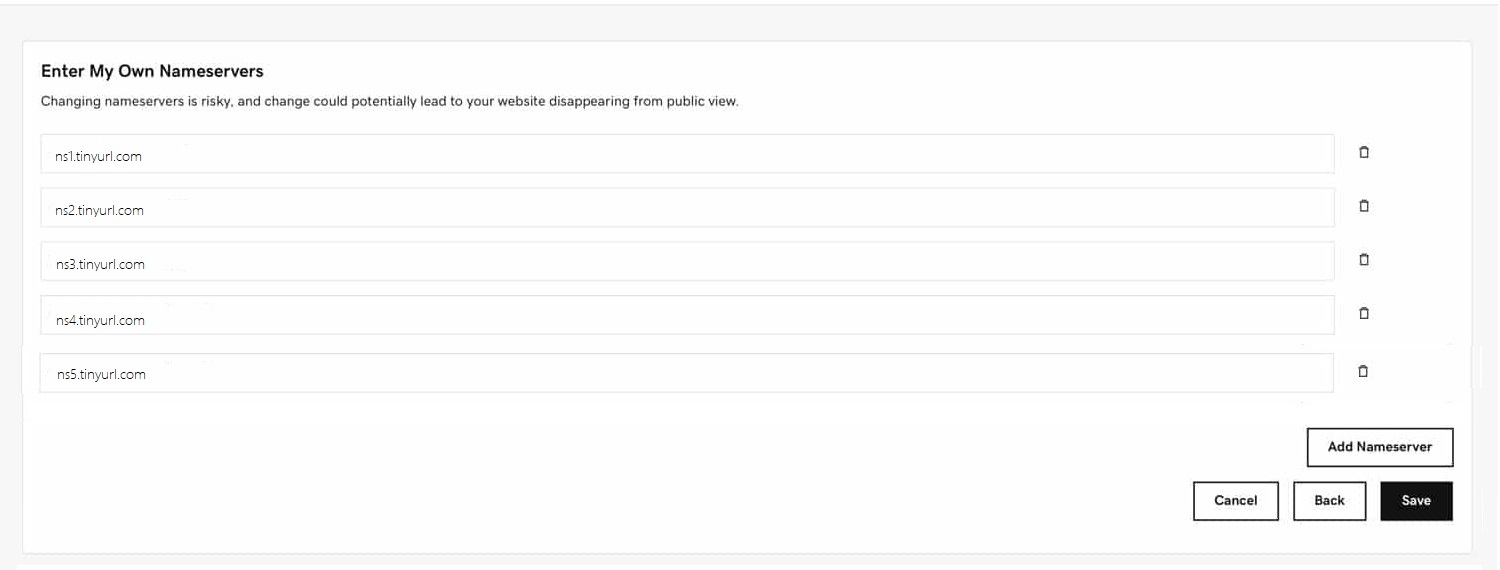
- Click Save to confirm your changes.
Manage your subdomain
To complete the CNAME setup of your subdomain connected to TinyURL, please complete the following steps.
- Login and change DNS settings with your GoDaddy Domain Control Center.
- From your Dashboard or Domains List, select the root domain of the subdomain you added into TinyURL.
- On the Domain Settings page, scroll down to Additional Settings and select Manage DNS.
- To connect your subdomain to TinyURL, for example test.example.com, create a CNAME record on your domain regisrar and fill the following:
Type:CNAME
Host:test
Points to:copy the value shown in your TinyURL dashboard under Branded Domains or email, like the one highlighted in the screenshot
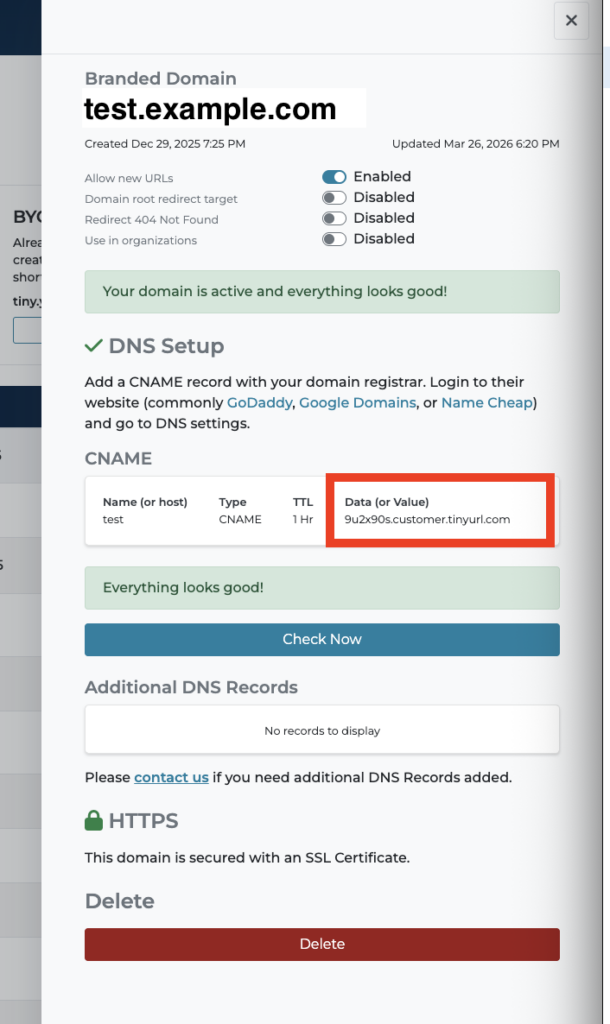
- Click Save to confirm your changes.