If you want users who type your branded domain directly (without a specific short link) to be redirected to a particular URL, configure the Domain Root Redirect Target setting as follows:
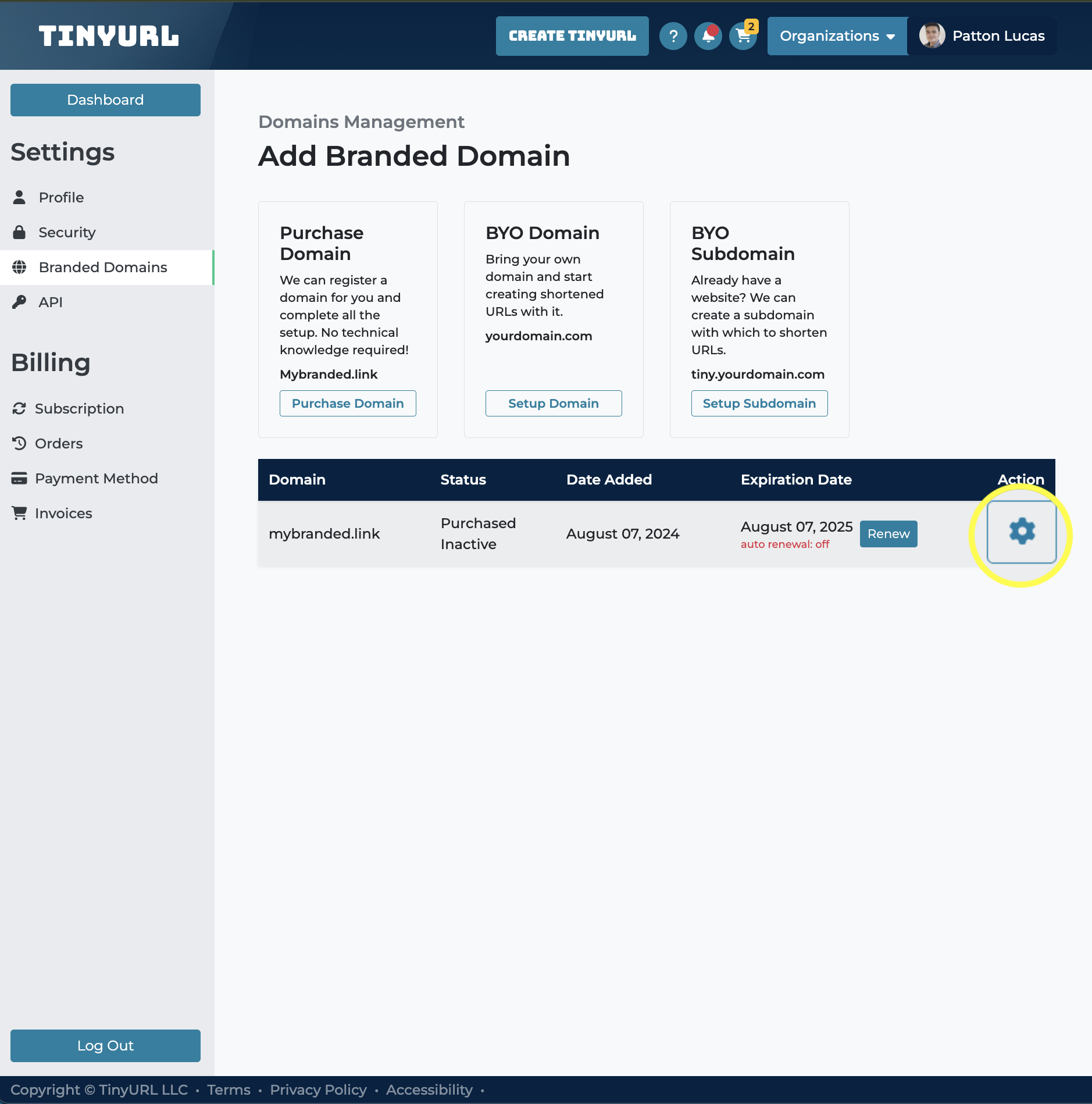
- Navigate to Profile Settings > Branded Domains.
- Locate your domain/subdomain in the list and click the gear icon in that row to open the Domain Slider.
- In the Domain Settings, find the Domain Root Redirect Target field, then toggle the switch to Enabled to expand the configuration options.
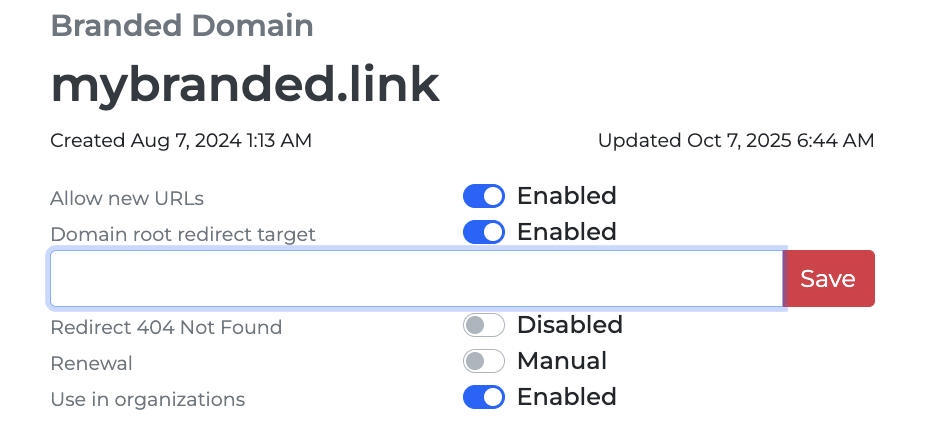
- In the input field provided, enter the destination URL where you want visitors to be redirected. (e.g https://example.com/)
- Click Save to apply changes.
Once saved, any direct visits to your branded domain (without a short path appended) will automatically redirect to the specified target URL.